Wi‑Fi landing pages

Use guest Wi‑Fi to promote one clear offer.

When guests connect, show a poster, a download and a membership discount before they continue online.

Selected

Reval Cafe

Show today’s offer, then send guests to the menu or loyalty page.

portal.wifi.ee/reval-cafe
WiFi.eeReval Cafe Guest

Tallinn

Coffee offer before guests browse

Show today’s offer, then send guests to the menu or loyalty page.

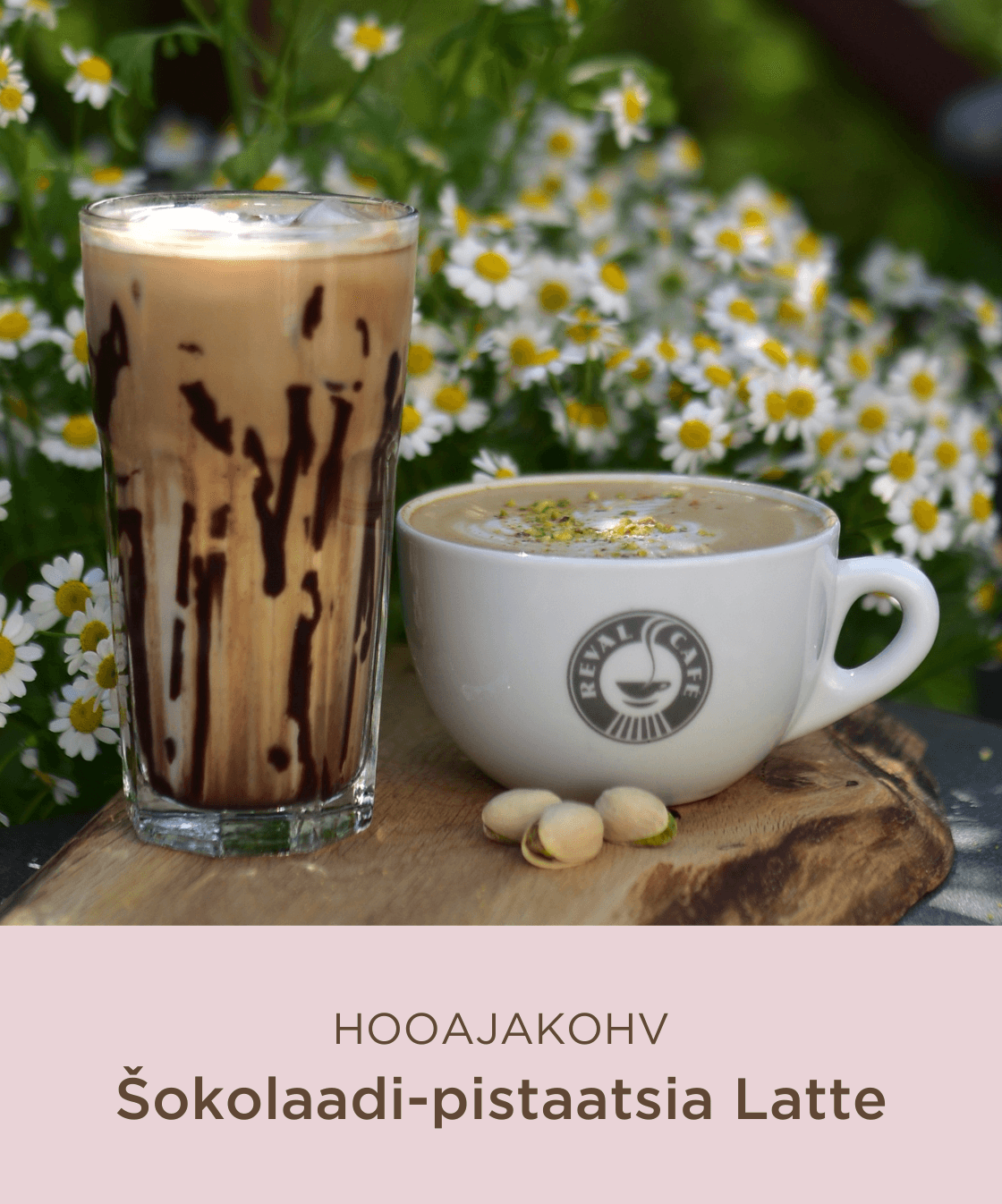
Reval Cafe portal poster
Download coffee voucherJoin for discountsContinue to Wi‑Fi
9:41Wi‑Fi
WiFi.eeReval Cafe Guest

Tallinn

Coffee offer before guests browse

Show today’s offer, then send guests to the menu or loyalty page.

Reval Cafe portal poster
Download coffee voucherJoin for discountsContinue to Wi‑Fi

Simple flow

A short screen guests can understand quickly.

1

Guest joins your Wi‑Fi.

2

Your portal shows a poster and two useful actions.

3

Guest continues to the internet, menu or loyalty page.

Inside the admin interface

The tools behind every Wi‑Fi welcome screen.

These are screenshots from the working WiFi.ee dashboard. Venue owners can manage the customer-facing portal and the connection details from the same place.

Location dashboard

Manage every guest Wi‑Fi location from one view.

The dashboard keeps published locations, private drafts and recent changes together, so a cafe team can find the right venue and continue editing quickly.

  • Search and filter locations by name, city, chain or publication status.
  • Keep unfinished locations private until their details are ready.
  • Open the public venue page or continue editing directly from the dashboard.
  • Assign several selected locations to the same chain in one action.
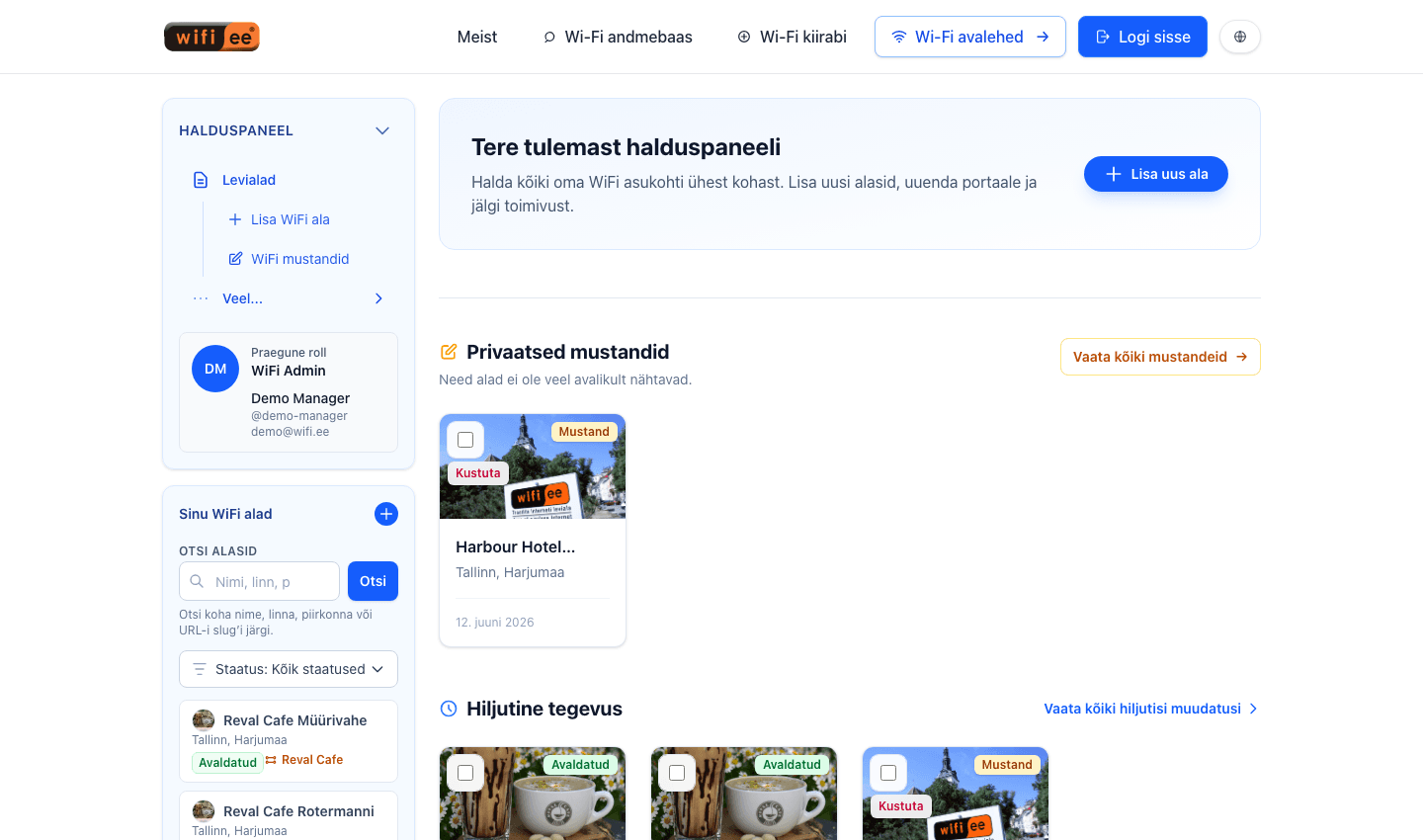
WiFi.ee admin dashboard showing cafe locations and drafts

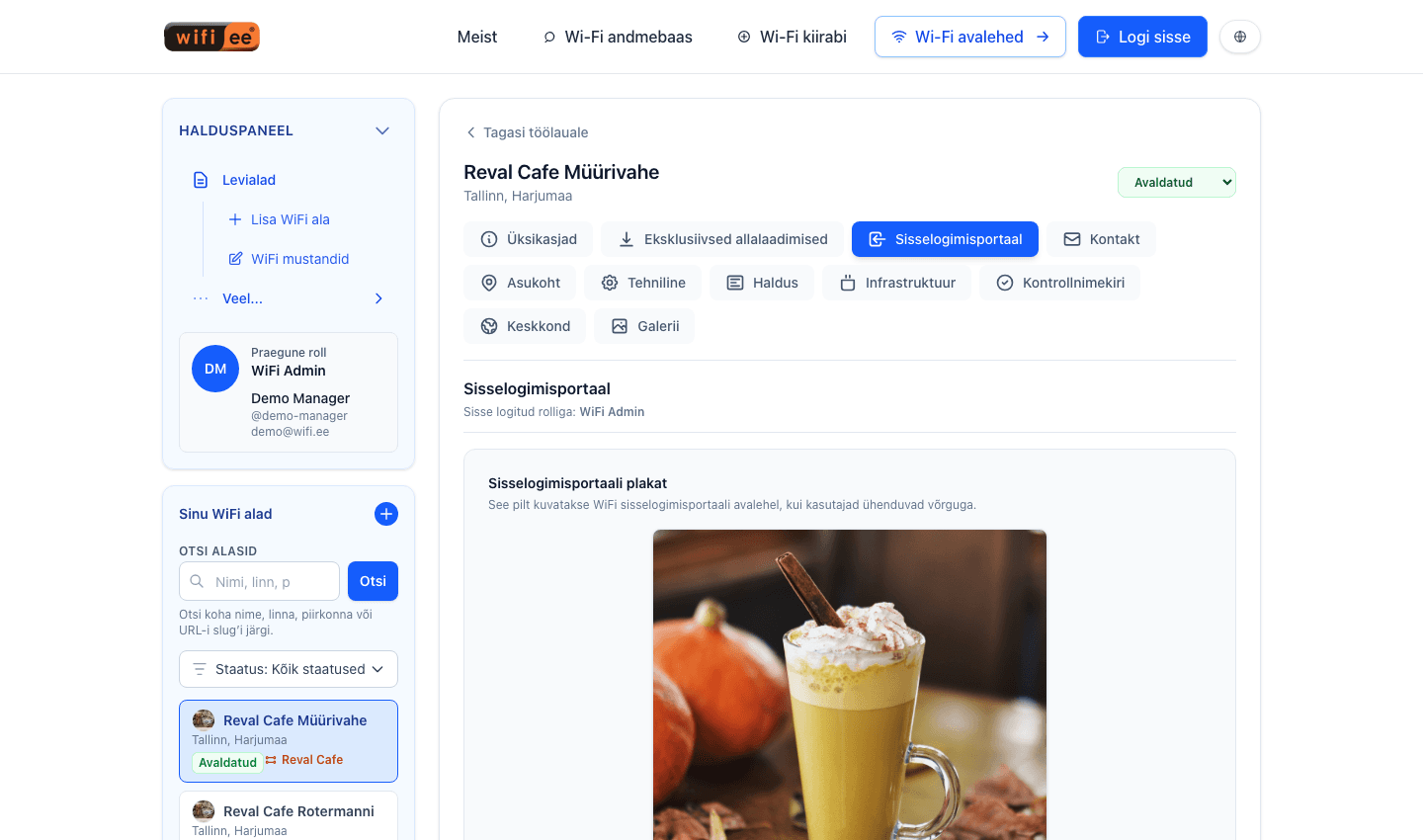
Captive portal campaigns

Change the poster and destination without touching the router.

Upload the image guests see when they connect, choose where they continue afterwards, and reuse the same campaign across a cafe chain.

  • Upload, preview, replace or remove the captive portal poster.
  • Set the redirect URL for a menu, campaign, booking page or loyalty club.
  • Synchronize one poster to the other locations in the same chain.
  • Use a stable poster URL in external portal or network services.
WiFi.ee captive portal poster editor for a cafe

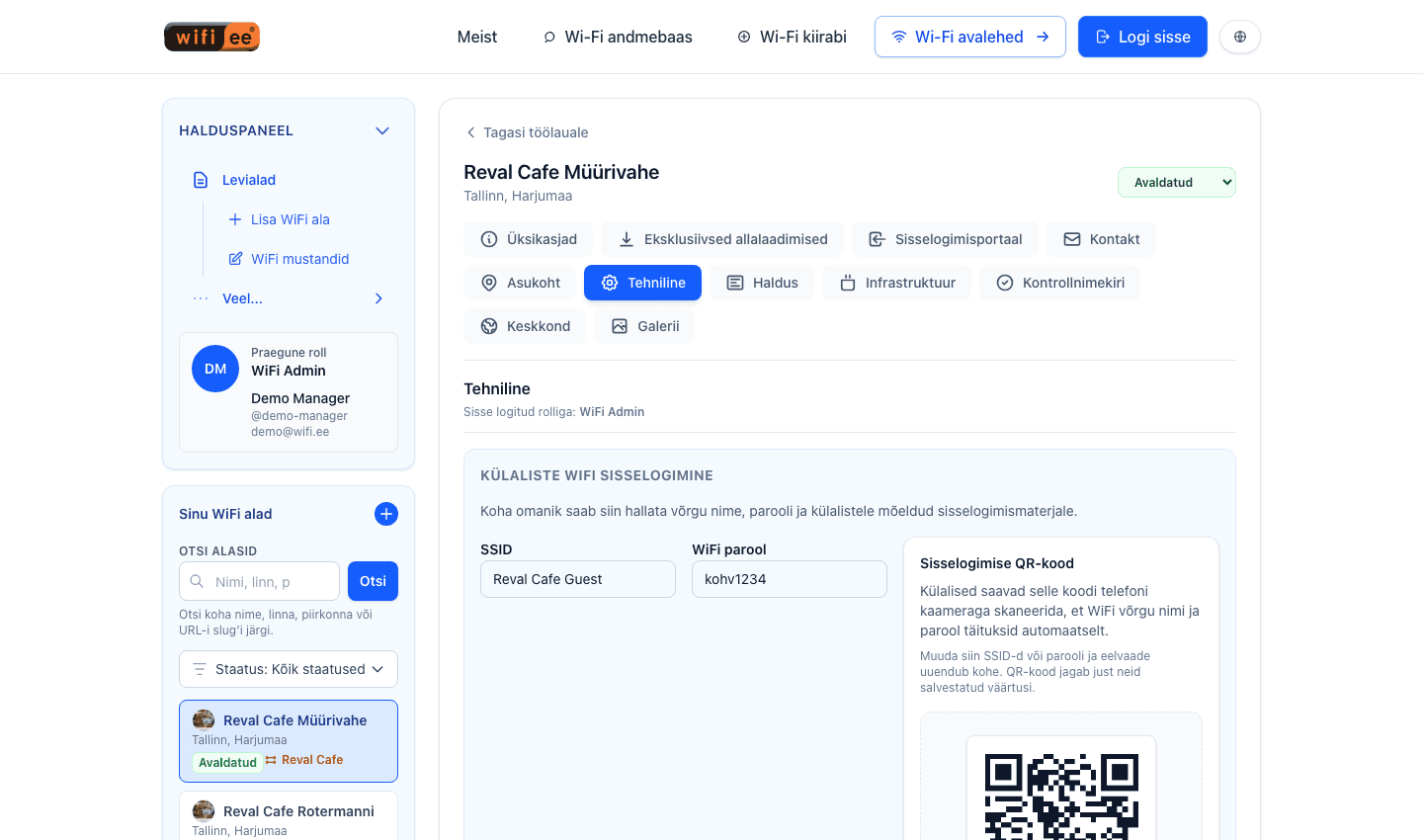
Guest quick login

Turn the saved network details into scan-ready login tools.

The technical view keeps the guest SSID and password next to the automatically generated QR code, App Clip setup and printable Wi‑Fi material.

  • Store the current guest network name and password in one place.
  • Generate a Wi‑Fi QR code that fills the connection details automatically.
  • Prepare an iPhone App Clip link for one-tap joining.
  • Create printable signs that staff can place at the counter or tables.
WiFi.ee admin interface showing guest Wi-Fi credentials and QR code

Ready to turn Wi‑Fi into a loyalty touchpoint?

Create a landing page that greets every guest before they browse.

Add one offer, menu link or loyalty sign-up, then update it whenever your campaign changes.

Start now